How to Customize Templates
Log in to your Giddh account.
To search for anything in Giddh, press Ctrl+G (for Windows) or Cmd+G (for Mac),
or use the search icon at the top of the page.
Search “Template”
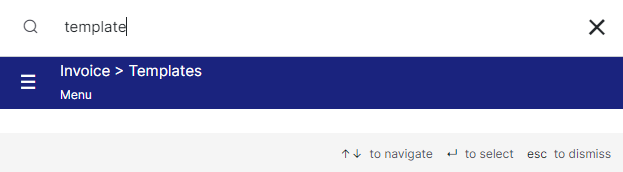
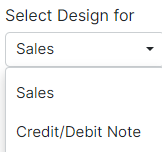
Select the option for which you want to customize the template
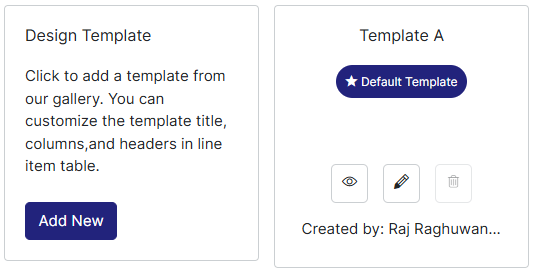
You can customize the template in 2 ways-
1. If you want to make a new template then click on "Add New" button or
2. If you want to edit in the default template click on the "Edit" button
The template is divided into 2 parts for editing-
1. Design- In which you can edit the logo, colour, fonts, printing settings
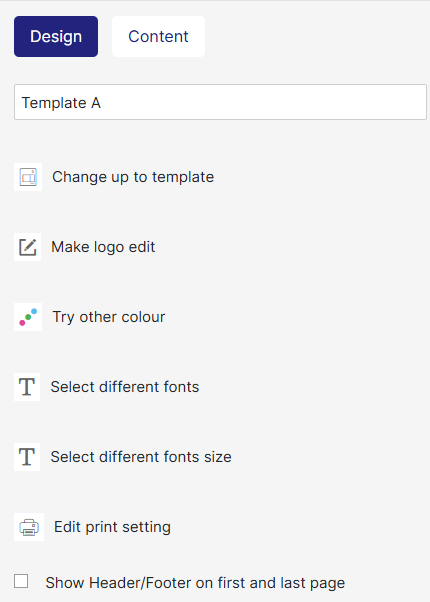
2. Content- It is further divided into 3 parts : You have to select the part from the template to edit its details
Part-a. Header- Includes all the basic details related to the company
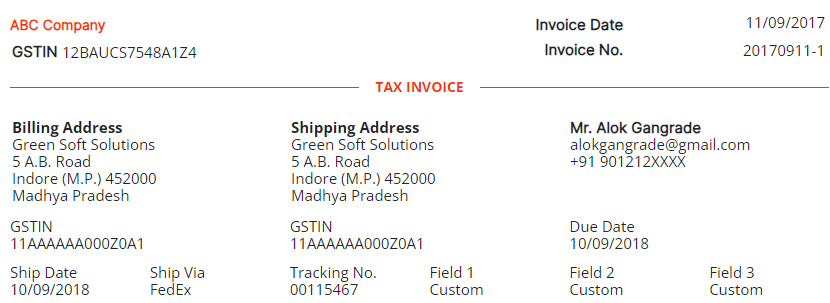
Part-b. Table- Includes all the details related to the product/ services
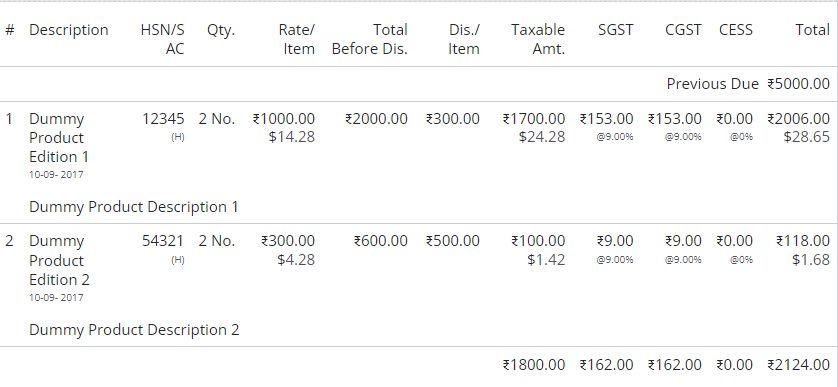
Part-c. Footer- Includes details related to the declaration, thankyou note, signature, etc.
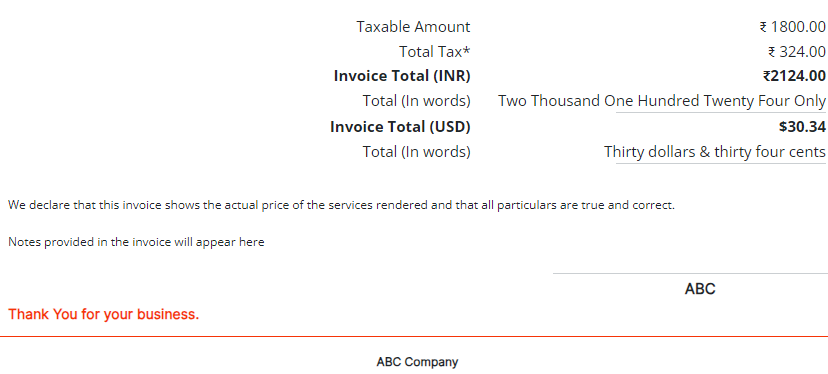
Once you are done with the changes, to update the changes click on "Update Template" button